
Use the same CMS I&A account you use to manage your NPI Type 1. This guide is for practice owners or staff linking an NPI Type 2 for credentialing.
Interactive walkthrough
Register as a CMS Authorized Official
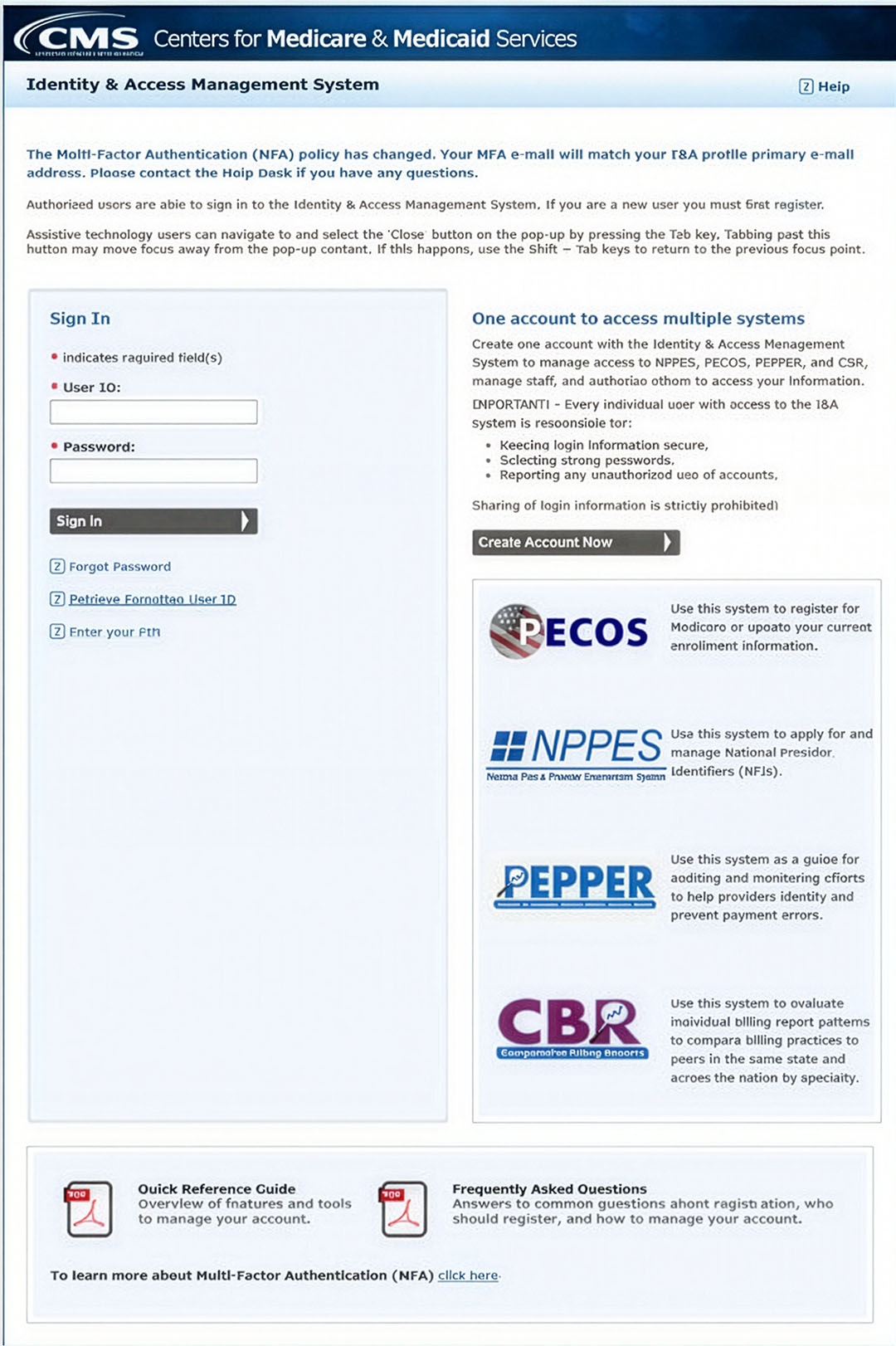
Step-by-step instructions
Register for an employer role in CMS I&A
- 1
Log in to CMS I&A
Visit the CMS I&A portal and sign in with the same I&A account you use for NPPES and your NPI Type 1.
- 2
Open My Profile
On the Home tab, read the organization-access prompt, then select My Profile.
- 3
Add an employer
Scroll to Employer Information at the bottom of My Profile and select Add an Employer.
- 4
Search for the employer
Enter the employer search criteria and select Search. If the organization already has one, use the NPI Type 2 for this search.
- 5
Select the employer
If the employer appears in the results, select the radio button for the practice organization associated with the NPI Type 2.
If the employer is not found, use Add Employer Not in List, enter the required employer fields, and choose the email address you want tied to the employer.
- 6
Choose the requested role
After you select the employer, choose Authorized Official, Access Manager, or Staff End User from the role options.
- 7
Complete the role-specific fields
Authorized Officials must attest that they are authorized to act for the employer. Access Managers and Staff End Users must enter the required Authorized Official information for the employer.
- 8
Review and submit
On the Confirmation and Review page, review the approval actions, save the tracking ID, and select Done. CMS will send a confirmation email.
- 9
Upload verification if CMS asks
Some requests approve immediately if you are already listed for an enrolled organizational Medicare provider. Otherwise, CMS may require verification before approval.
For an Authorized Official request, CMS usually asks for a CP 575, which is the IRS letter issued when you created the EIN for your practice entity. Use Add a Document to upload the CP 575 so CMS can approve the request.
What each employer role means
For most practice owners, the correct role is Authorized Official. If you own the practice and can legally act for the organization, request Authorized Official access.
If you are a staff member, do not guess. Check with the practice owner or existing CMS I&A administrator to confirm whether you should request Access Manager or Staff End User access.
- Practice owner: choose Authorized Official if you can truthfully attest that you are authorized to legally bind the practice.
- Staff member managing user access or account details: confirm whether Access Manager is the right role before submitting.
- Staff member who only needs to work inside approved CMS applications: confirm whether Staff End User is the right role before submitting.
What happens after you submit
After the confirmation page, CMS sends a confirmation email. If you are already listed as the Authorized Official or Access Manager for an organizational provider enrolled in Medicare, the request may be approved immediately.
If the organization is not enrolled, is not eligible to enroll, or CMS cannot already verify you as an AO or AM for an enrolled Medicare provider, CMS may require verification review by External User Services before approval.
- Save the Request Tracking ID from the confirmation page.
- Watch for CMS email updates about processing or missing verification.
- Do not assume approval is complete until the status and access actually reflect the employer role.
Document upload tips for the confirmation page
If CMS asks for verification, the confirmation page includes document management controls. For Authorized Official requests, this is usually the CP 575 letter the IRS sent when the practice entity's EIN was created. Use Add a Document, select the approved document type, upload the CP 575, and confirm that the upload appears in the table before selecting Done.
The CMS guide notes accepted upload formats such as PDF, GIF, or JPEG and a maximum file size of 10 MB. Keep the file name clear and avoid uploading unrelated documents.
- Use the CP 575 for the practice entity when CMS requests EIN verification.
- Confirm the document status before leaving the confirmation page.
- Keep the uploaded document and request tracking ID together in your credentialing records.
Where this fits in the credentialing workflow
This page is one supporting piece of the broader therapist insurance credentialing workflow. For hands-on help with setup, submissions, follow-up, and effective-date confirmation, start with Insurance Credentialing for Therapists.
For the full step-by-step learning path, read How to Get Paneled With Insurance as a Therapist. That guide connects payer choice, CAQH readiness, applications, follow-up, and billing readiness into one sequence.
Frequently asked questions
Where do I register as an Authorized Official in CMS I&A?
Log in to CMS I&A, open My Profile, scroll to Employer Information, select Add an Employer, search for the organization, choose the employer, and request the Authorized Official role.
Should I search by NPI or employer name?
For organizational providers with an existing NPI, NPI search is usually the cleanest option because it reduces the chance of selecting the wrong similarly named organization.
What if my employer is not found in CMS I&A search?
Use Add Employer Not in List and complete the required employer details. You may need to provide verification before CMS approves the employer relationship.
Do Authorized Official requests always approve immediately?
No. Some requests may approve immediately when CMS can already verify the AO or AM relationship for a Medicare-enrolled organizational provider. Other requests require document verification by CMS External User Services.