
Before you start
This process exports the CAQH state application PDF from your CAQH ProView profile. It is useful when you need a copy of your provider profile, when a credentialing team asks for your CAQH profile, or when you want to review what supporting documents are attached.
You will need access to your CAQH ProView account. Start from the CAQH Provider Data Portal home page at https://proview.caqh.org/PR, sign in, and go to Home if the portal opens somewhere else.
- Know your CAQH username and password.
- Make sure your profile is complete enough to generate the state application.
- Expect the downloaded file to include sensitive credentialing details, so store it securely.
Go to the CAQH home screen
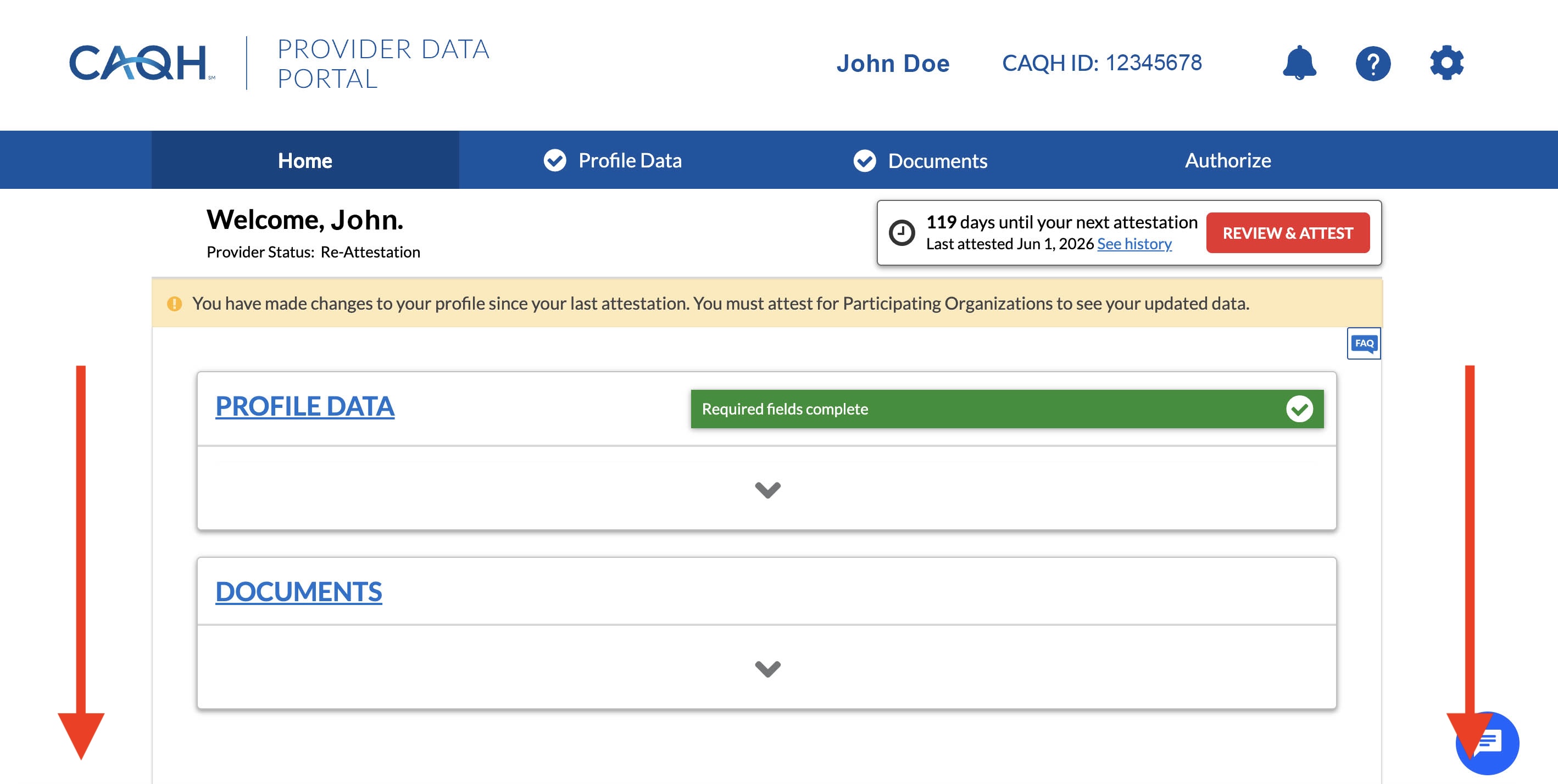
After logging in, open the Home tab in the CAQH Provider Data Portal. You should see the main profile dashboard with sections such as Profile Data and Documents.
The download option is lower on this Home page. If you only see the top of the profile dashboard, scroll down until the document download cards come into view.
Click Download Your State Application
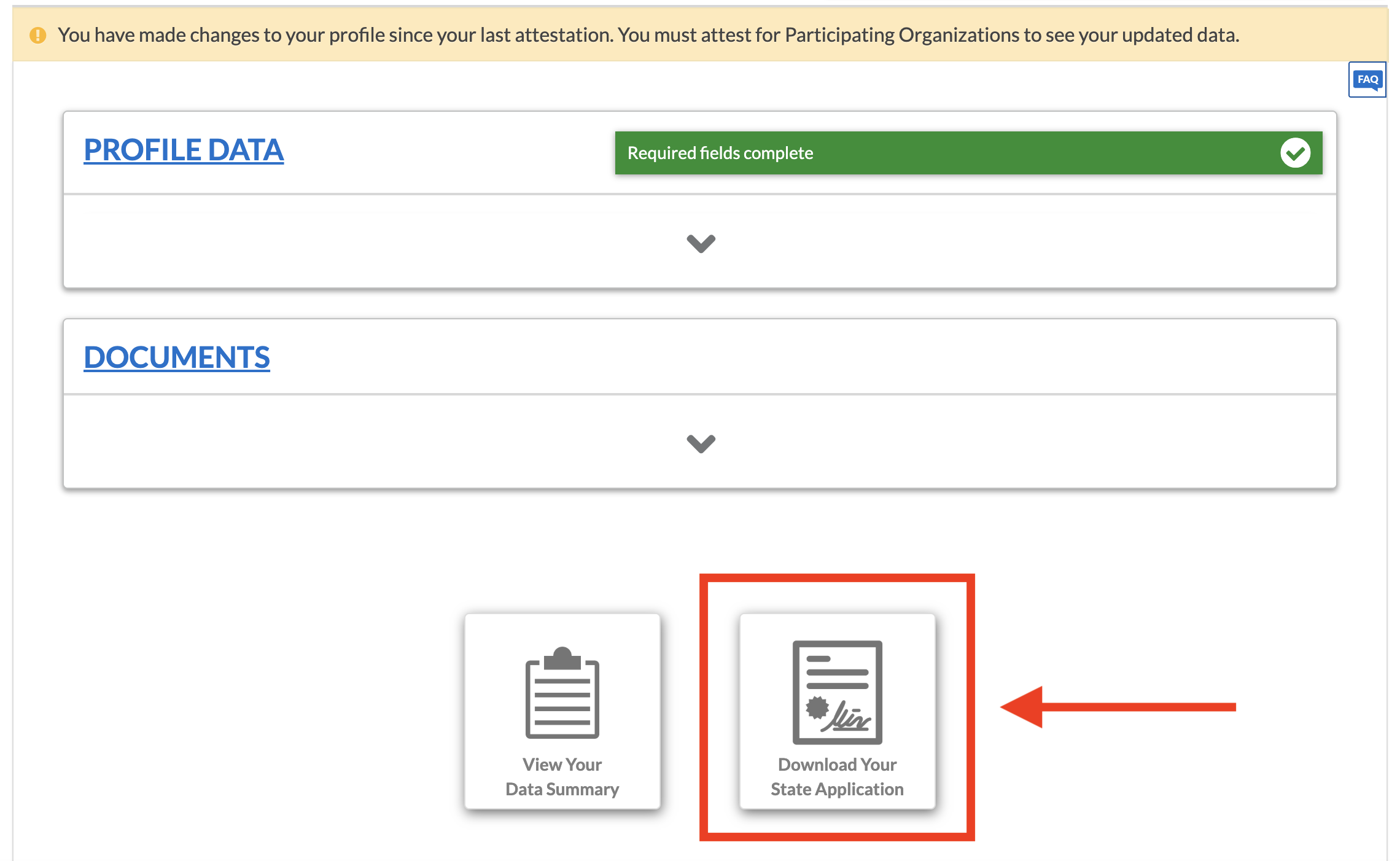
Once you scroll down, look for the card labeled Download Your State Application. It usually appears near another card labeled View Your Data Summary.
Click Download Your State Application. This opens the controls for choosing a state and deciding whether supporting documents should be included.
Select the state and include documents
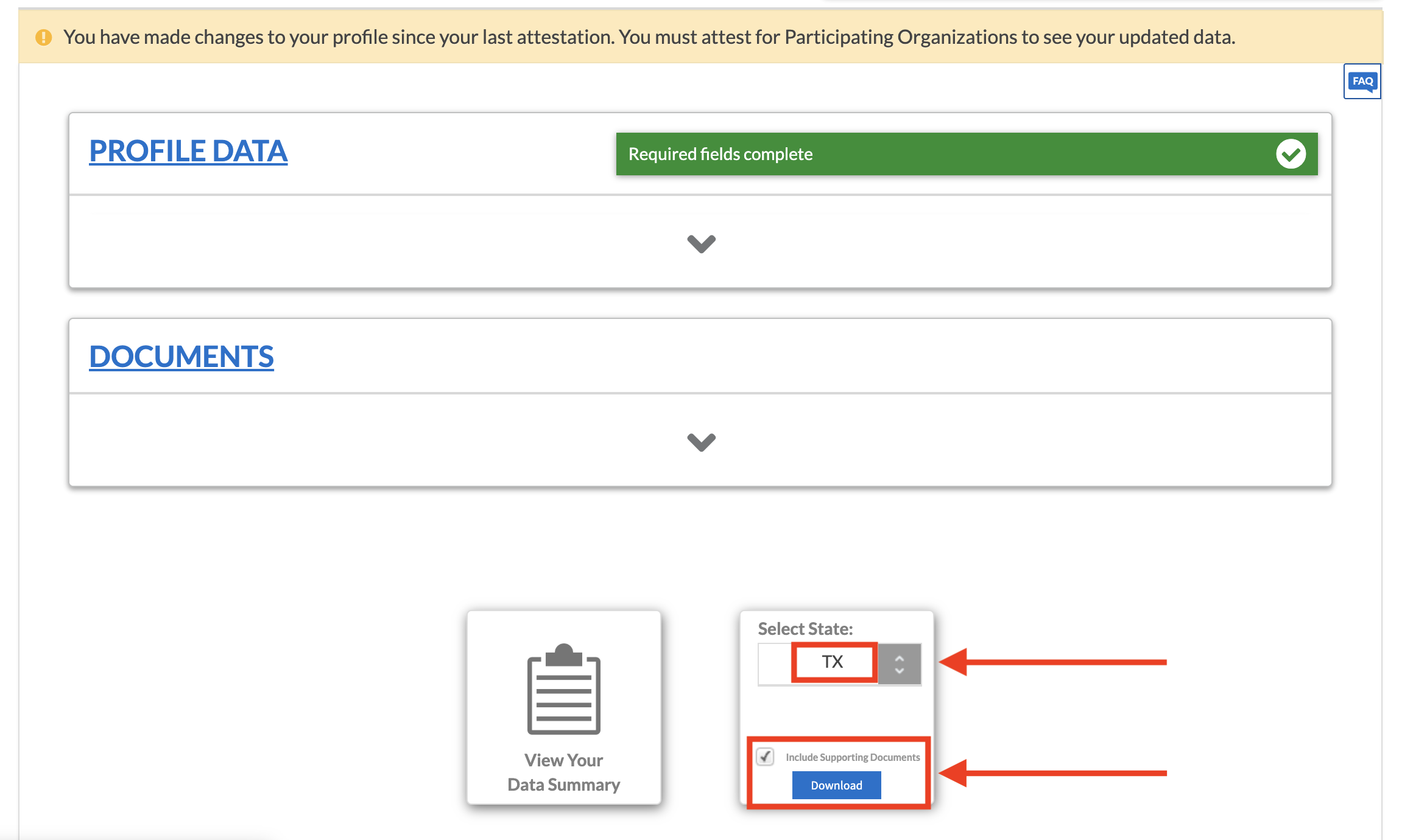
Use the Select State dropdown to choose the state application you want to export. Some providers only see one state. Providers practicing across multiple states may see more than one option.
Check Include Supporting Documents if you want the PDF package to include the documents attached to the profile. Then click Download.
- If you only practice in one state, choose the single state shown.
- If you practice in multiple states, choose the state requested by the payer, credentialing team, or application workflow.
- Leave Include Supporting Documents checked when the recipient needs the complete supporting-document package.
Save and confirm the PDF
After you click Download, CAQH should generate the PDF file. Depending on your browser settings, it may save automatically to Downloads or ask where you want to save it.
Open the downloaded file before sending it anywhere. Confirm that the state is correct, the supporting documents are included if you selected that option, and the PDF does not contain outdated information you need to fix in CAQH first.
- Rename the file clearly, such as CAQH-State-Application-TX-with-supporting-documents.pdf.
- Do not send the PDF through unsecured channels unless the recipient specifically provides an approved upload path.
- If the PDF is missing expected documents, return to CAQH, update the document section, re-attest if needed, and download again.
Where this fits in the credentialing workflow
This page is one supporting piece of the broader therapist insurance credentialing workflow. For hands-on help with setup, submissions, follow-up, and effective-date confirmation, start with Insurance Credentialing for Therapists.
For the full step-by-step learning path, read How to Get Paneled With Insurance as a Therapist. That guide connects payer choice, CAQH readiness, applications, follow-up, and billing readiness into one sequence.
Frequently asked questions
Where do I download my CAQH profile as a PDF?
Log in to CAQH ProView, go to Home, scroll to the Documents area, click Download Your State Application, select the relevant state, choose whether to include supporting documents, and click Download.
Should I include supporting documents when exporting my CAQH profile?
Include supporting documents when a payer, credentialing team, or internal review needs the complete document package. If the recipient only needs the application data, ask whether the supporting documents are required.
Why do I only see one state in CAQH?
Many providers only have one available state application. Providers practicing or credentialing across multiple states may see multiple options in the Select State dropdown.